If you need to manage recurring invoices with Paypal (e.g. database or product subscription) of the same amount, Collabox can make it easier for you. Thanks to the online payment service PayPal, Collabox is able to automatically manage recurring invoices. This way, your client will getreceives his bill and the amount is charged by PayPal. The whole eis automatically accounted for in Collabox.
Set up Paypal
First, set up a PayPal account in Collabox.
To do this, simply consult the procedure to follow . The next steps will allow you to configure the correct settings of your Collabox to use the automatic payment of recurring invoices.
Create an invoice
Inside the Collabox software, you must first select or create an invoice. To select the invoice, click on its number. Then create an invoice renewal.
This function tells Collabox that the payment of this invoice will berenewed periodically.
Comment créer un renouvellement de facture?
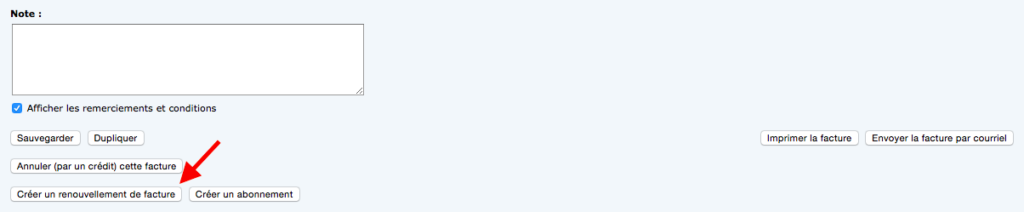
Once the invoice to renew is selected, you must click on “Create an invoice renewal”.
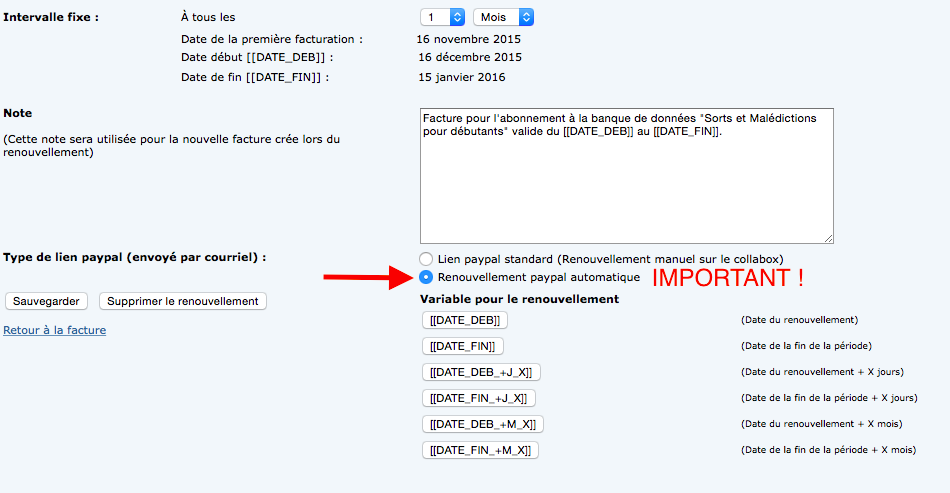
The next page allows you to set the renewal parameters. Thus, it is possible to select the invoicing frequency. In this case, the frequency is set monthly. The first invoice will be dated November 16 and will cover the period from December 16, 2015 to January 15, 2016. The “Note” section allows you to write a personalized message that will appear on your customer’s invoice. To ensure that the renewal is automatic with PayPal, it is essential to CHECK the option “Automatic PayPal renewal”. Otherwise, you will have to manually renew the invoice in Collabox.
The renewal variables exist to allow you to automatically adapt the note at the bottom of the invoice according to the invoicing period.
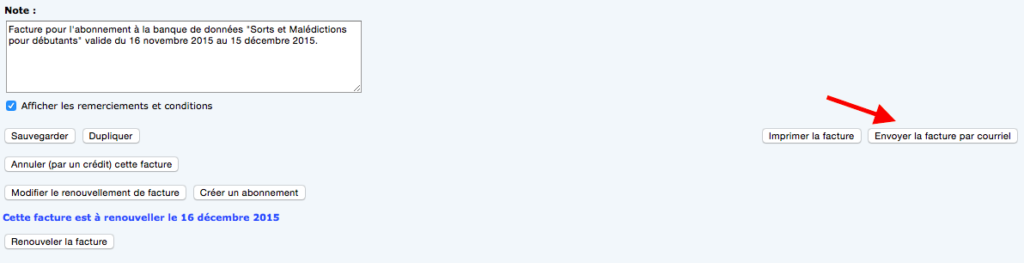
Then send the created invoice to the customer through the Collabox link. This option is mandatory for Paypal to work.
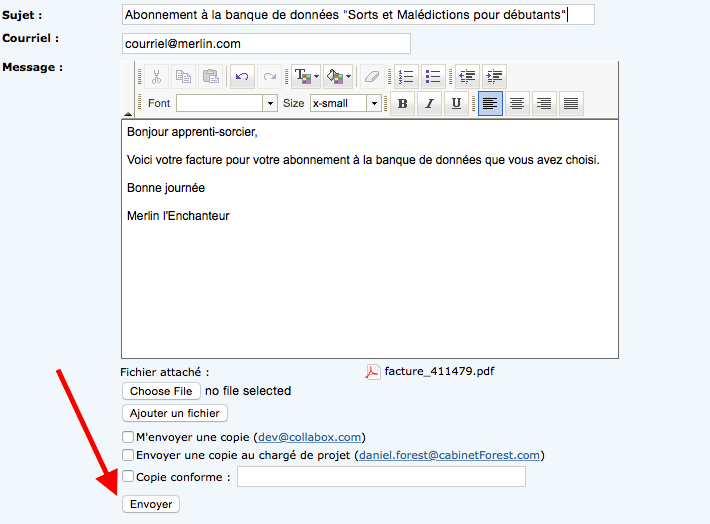
Customize your outgoing message automatically or write it by hand. The invoice is already attached. A clickable link appears and is available for the connection to the PayPal account.
Pay by Paypal
It is important that the customer clicks on the PayPal logo to initiate the final segment of the automated payment setup. This last step takes place completely with PayPal.

Before your customer logs into their PayPal account, it is possible to see the current invoice amount (the current month), as well as the amount for the following months. The last step is to log into PayPal. Your customer logs in using the “Log In” option and all they have to do is enter their information to complete the automatic payment process. PayPal and Collabox will take care of the rest. The next invoices will be sent, the payment will be taken and released and the invoice will be renewed automatically.
Watch several videos on our Youtube channel and visit our Tips and Tricks section in the Documentary Blog to continue using the Collabox!
If you have any questions, please contact us and we will be happy to answer you.
info@collabox.com (418) 907-9274 ext. 120