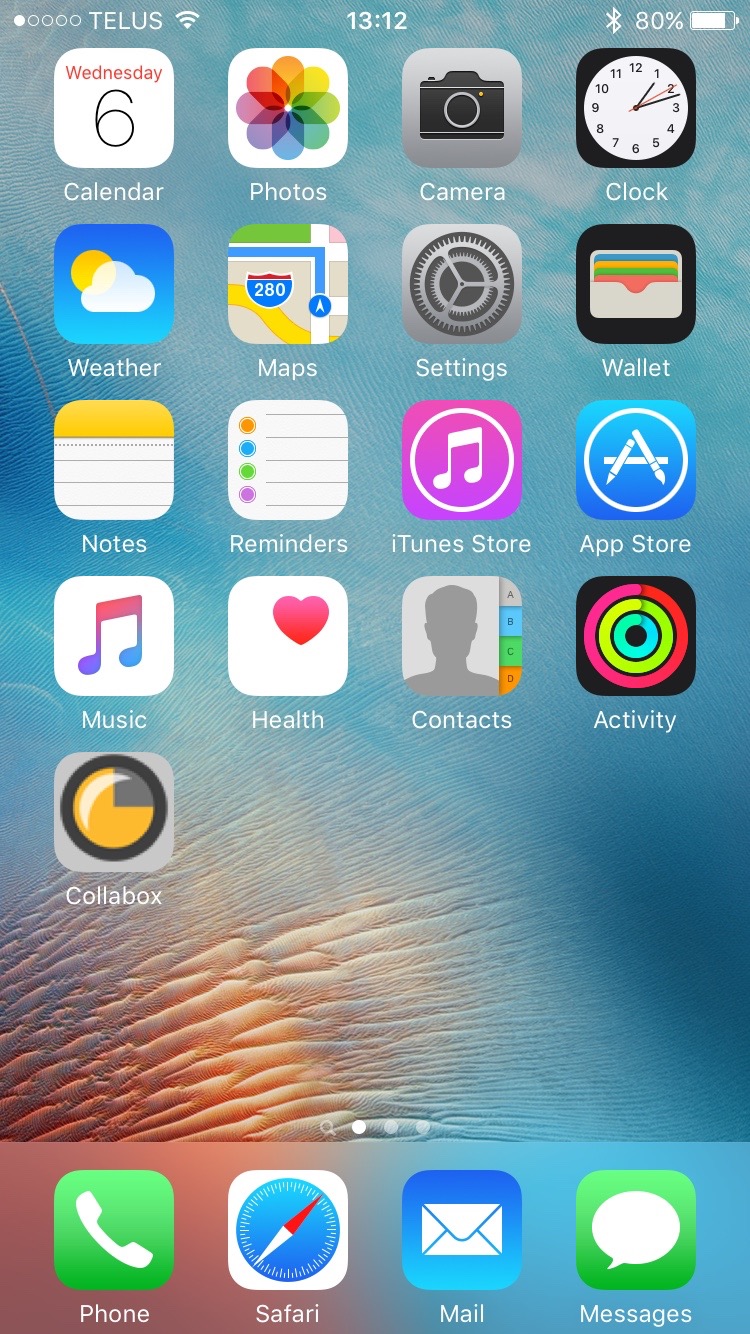
Dear salesmen, you are planning to go on tour and need prospecting lists? We’ve got you covered! Thanks to the Collabox, you will be able to plan your routes efficiently and leave with peace of mind.
You can now create prospecting lists on the Collabox. Access your prospecting list, the contact details of your contacts and the comments left in their individual files anywhere and anytime!
Prospecting lists
To access prospecting lists, go to the module Contacts , then click Prospecting lists in the vertical menu.
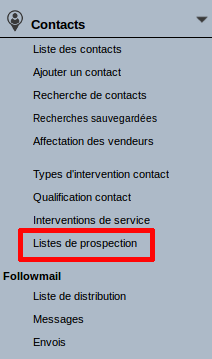
Collabox vertical menu, section Contacts
You will see all of the prospecting lists that you and your colleagues have created.
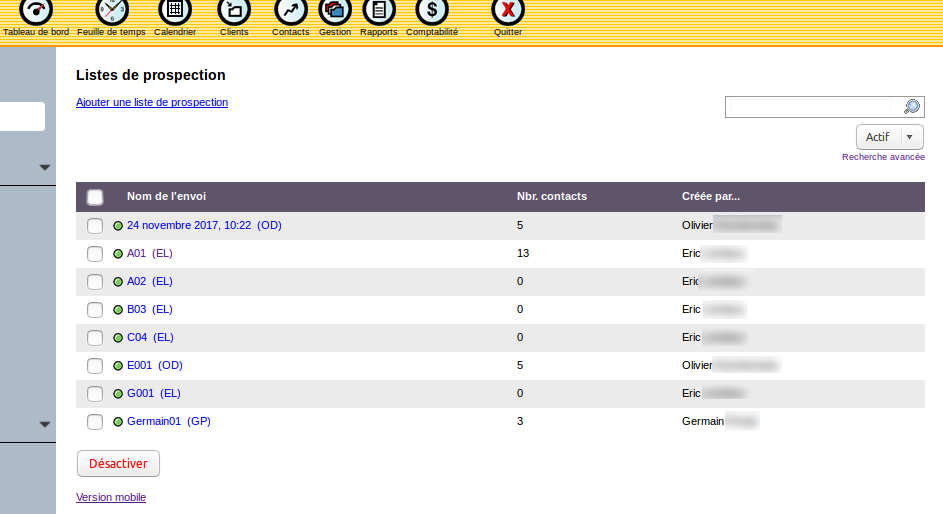 Page Prospecting lists
When you click on the name of one of the lists, it opens with a detailed list of contacts (2), ranked in order of priority (1), with emails (3), a follow-up date (4) , follow-up date (5) and sections (6).
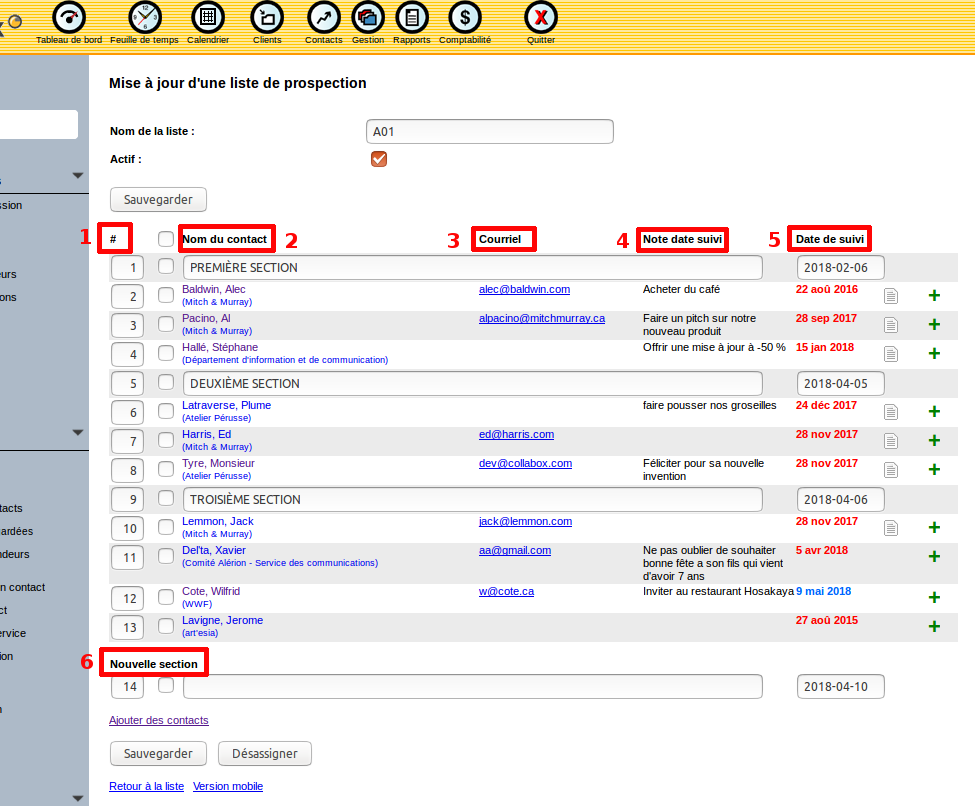
Page Updating a prospecting list
Let’s look at each of these elements in a little more detail.
- The priority order , located to the left of your clients’ names, is changed at any time. It is used to place in order the people you are going to visit according to their geographical position or their availability to meet you.
- The follow-up dates are displayed in blue for upcoming follow-ups, in red for follow-ups whose date has passed, in green for today’s date.
- The ” Follow-up date note ” is permanently displayed directly in the list.
- The icons allow you to access the history of comments in your client’s file and to write new ones. Comments are displayed from most recent to oldest.
- Sections are used to divide the list into several sections that you can name and date.
Interesting shortcut: In a customer’s contact record, you can click on the ” Google ” icon which will redirect you to Google Maps at your customer’s address.
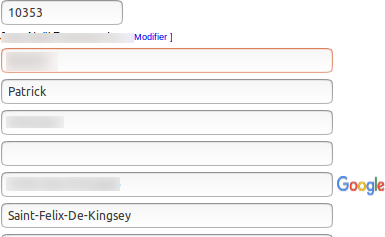
Page Updating a contact
Mobile device version
We have also adapted the display of prospecting lists so that they are pleasant to view on a mobile device .
List preview on mobile device
The prospecting list is displayed like this. By default, you only see your own prospecting lists. To also see the lists of your colleagues, click on the link All the users .
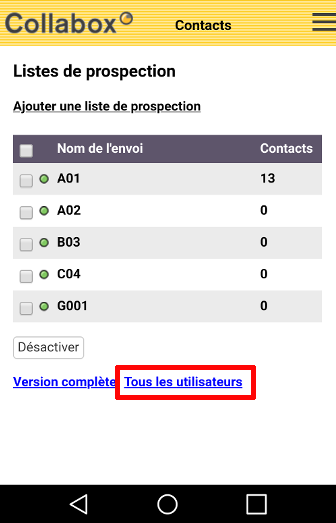
Page Prospecting list
Mobile device version
The initials of each of the sellers will appear next to the name of their listings.
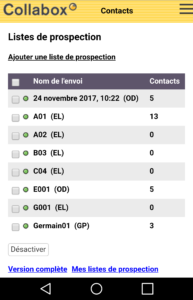
Page Prospecting list from all sellers
Mobile device version
Click on one of the lists to consult it. There are two differences between the mobile version of this page and the desktop version:
1. Sections are displayed in black.
2. The follow-up dates are clickable. They take you to a new page which allows you to directly edit the last note you left as well as the follow-up date.
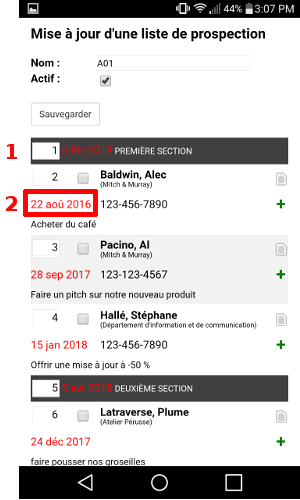
Page Updating a prospecting list
Mobile device version
The new follow-up note and date edit page is available exclusively in a mobile version.
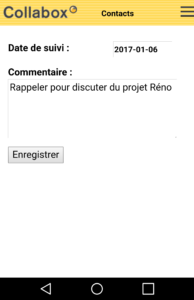
Track note and date edit page
Mobile device version
The comment history is displayed as follows:

Page Comments for contact:[nom du contact]
Mobile device version
… and adding comments like this:

Page Add comment to contact [contact namentact]
Mobile device version
It is even possible to record a comment by dictating the message aloud.
Check out our article to find out how create or update a prospecting list.
You can also watch several videos on our Youtube channel and visit our Tips and Tricks section in the Blog to continue your Collabox configuration!
If you have any questions, please contact us and we will be happy to answer you.