With Collabox, you can create service offers with options that can be customized according to your company’s needs.
The way of writing an offer of services and the services and products that one proposes have a very great strategic importance for the business development of any company. It is for this reason that the service offerings differ significantly from one company to another and we do our best to meet everyone’s needs. We have therefore added the options to the service offerings.
A catering service, for example, offers its client different options of accompaniment for the same menu. However, he does not necessarily want to include the client’s choices in the service offering so as not to overwhelm it, but he must all the same record them somewhere. Everything is then played under the tab Products of the service offer.
As usual, the caterer must select the products in his service offer. The difference is that the products for which they have not chosen the options will be displayed in red, while those for which they have entered their choices will appear in blue. It’s a little reminder.
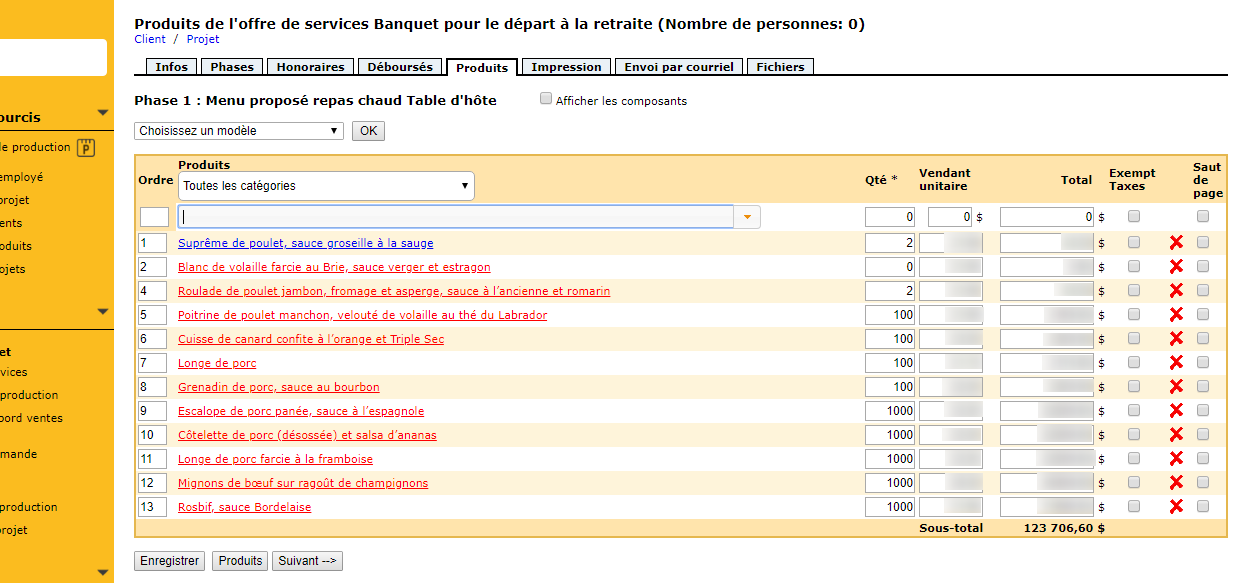
Page Products of the service offer
In order to select the options, he must click on the product name in the list. A new window will open on them. It remains to check the choices that interest him, then click on Record .

Product options window Chicken breast…
He can follow the same procedure for each of the products. If he wants to create new options, he will have to go to the product list and add components to his product. Once the components have been created, the options window is automatically generated.
Procedure for creating options
Go to the module Accounting .
 Collabox horizontal menu
Click on Products in the vertical menu.
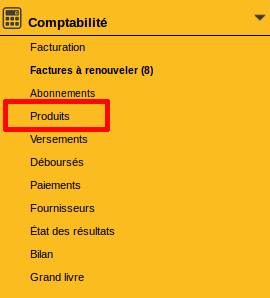
Collabox vertical menu
Click on the name of the product you want to modify in the list, then go to the tab Components.
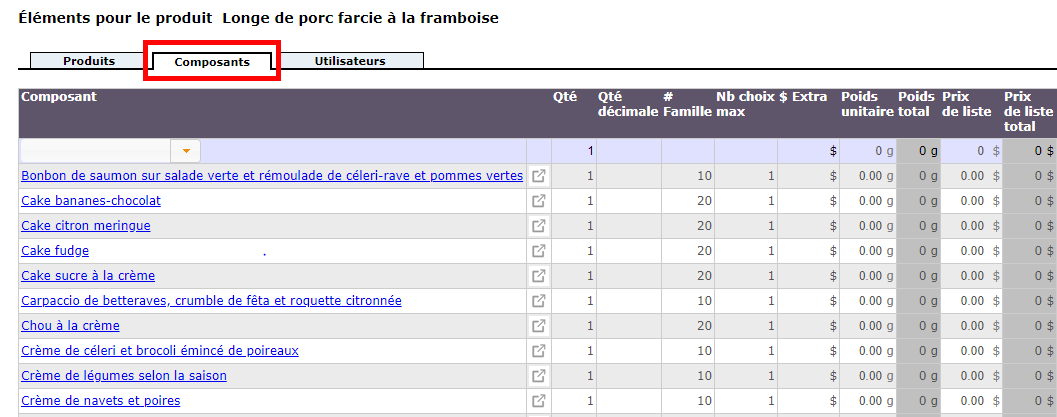 Page Elements for the product[nom du produit]
Fill in the elements of the grid.
In order to better find your way on this page, here is a description of the main elements that make it up:
- Drop-down menu under Component : used to select an existing product and define it as a component of another product.
- Pictogram
 : allows easy access to the component’s product sheet.
 - # Family : groups the options. In an options window, there may be different options to select. For example, for a chicken dish, we could have a set of side options, which we would group together in family 10, and a set of dessert options, which we would group together in family 30. The numbers chosen do not matter. They are only used to create option groups.
- Max number of choices : determines the number of options that can be selected per family.
- $ Extra : Adds an amount for a particular option. For example, if the customer wants a gratin dauphinois instead of mashed potatoes and it costs $ 2 more, this is where the $ 2 extra is entered.
Interested in these new possibilities in the service offerings? Contact us to try it!