Plan your employees’ vacations and vacations by allowing them to create an appointment on a “Vacation” or “Leave” project. This way, they can plan their absences and you can be notified immediately and approve or not their request.
Create a project for vacations and vacations
First, create a vacation project, such as “Vacation 2022-2022” or a leave project, such as “Health Leave 2022.”

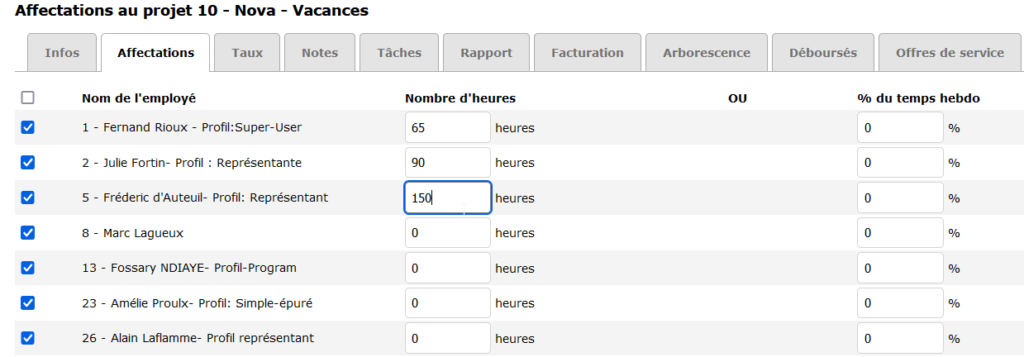
For even more efficient management, add your employees’ accumulated vacation hours in the “Assignment” tab of the project. These hours can be found in the time bank report which you can view here.
Add an appointment
Then add an appointment and assign it to the vacation or vacation project. This way, the supervisor will receive a notification and can approve the request. If necessary, move the vacation appointments by dragging them to another date.
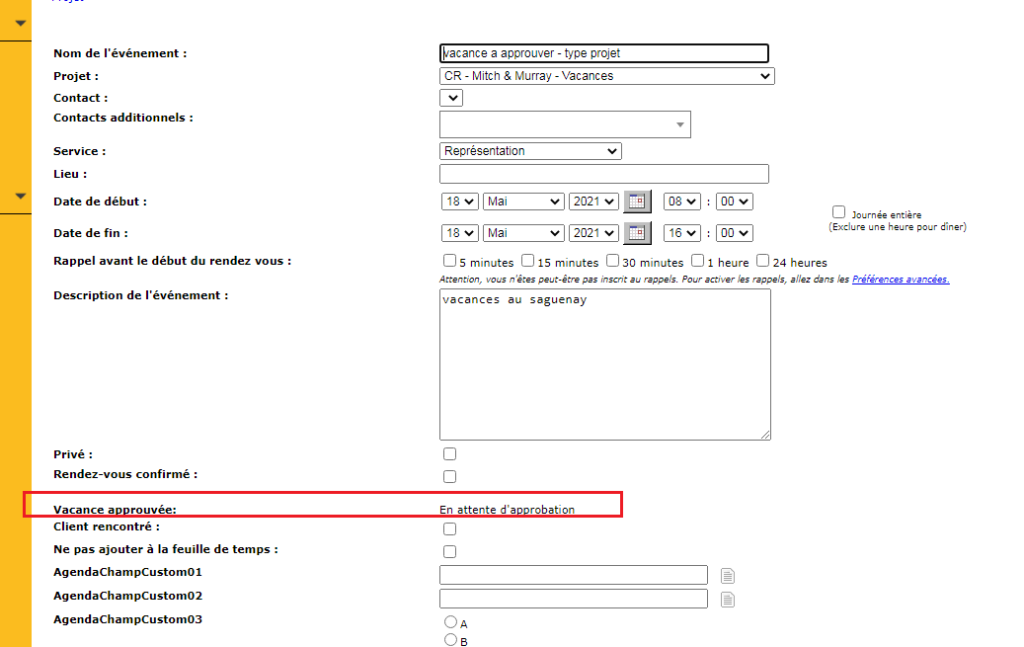
You cannot put more than one person at a time on this type of appointment.
As a supervisor, you receive a warning email that Mr. Employee has created a vacation agenda.
Click on the link sent in the email to approve the appointment.

After approving a request, the employee is automatically notified by email as well.

Viewing vacation and leave approvals
First, look in the “appointment” form and observe the green check mark including the date and name of the supervisor who approved the vacation.

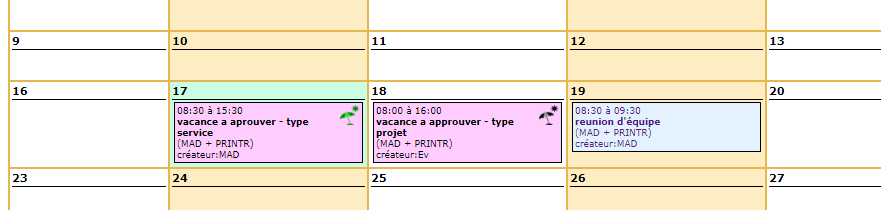
Then, a green umbrella visual icon appears in the employee’s calendar. A black umbrella indicates that the application is still pending approval.
Have a great vacation!