We present in this article three ways to change your Collabox password.
1- My preferences
2- Configuration by an administrator
3- Link on the home page
1. My preferences
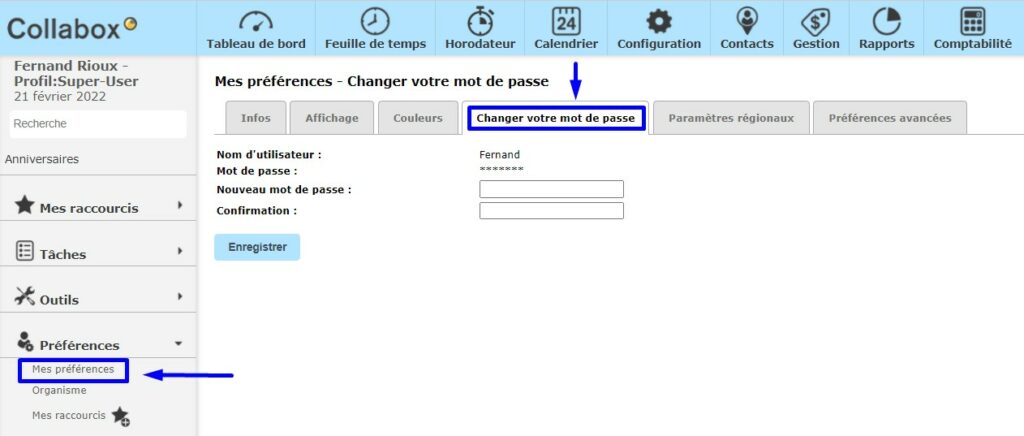
This procedure allows you to change your password. Once connected to your Collabox:
- Click on the My Preferences tab, located in the left-hand menu.
- Then, go to the tab Change your password.
- Enter your new password and click on Register
2. Configuration by an administrator
It is the administrator who can follow this procedure for a person in the team.
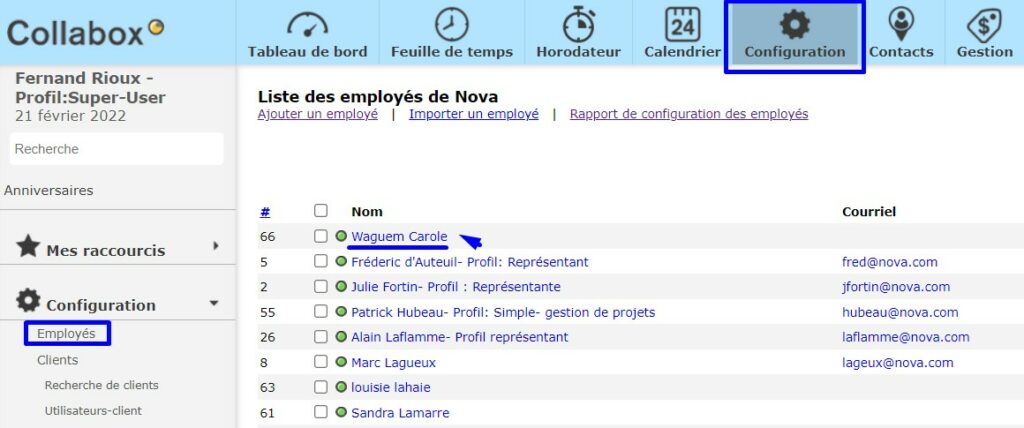
- Click on the icon Configuration .
- In the left menu, click on the tab Employees . You will fall on the page List of employees .
- Click on the employee whose password you wish to change. You will have access to the file of the employee in question.
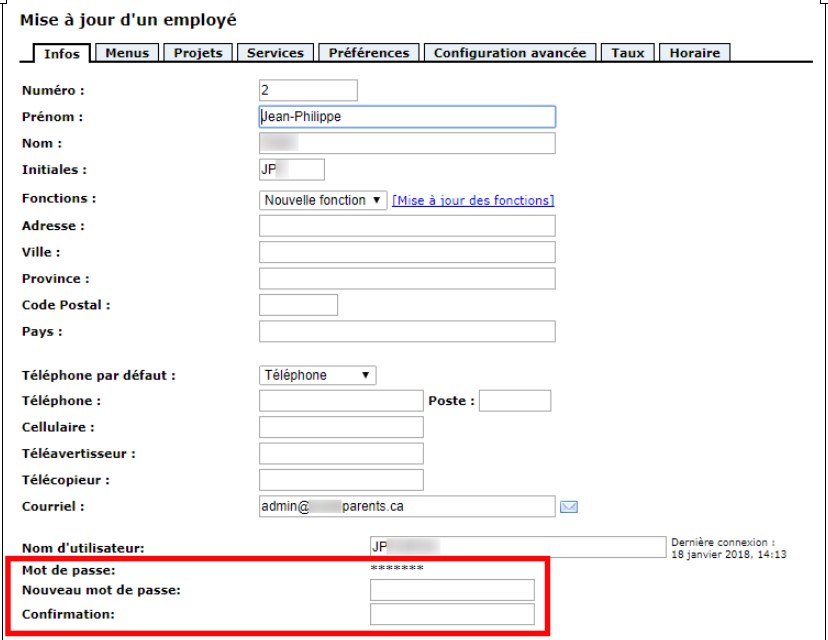
- Fill in the fields New Password and Confirmation (in this second field, you must rewrite the new password).
- Then, click on the button Record at the bottom of the page.
3. Link on the home page
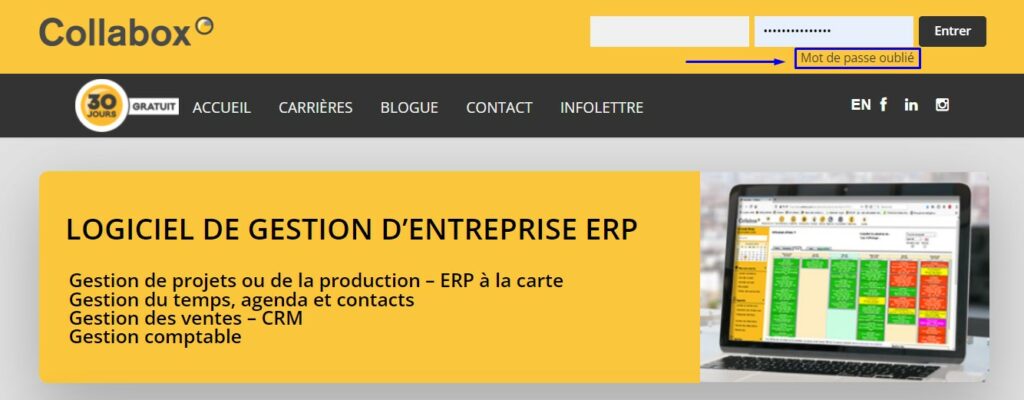
On the www.doc.collabox.com page , click on the Forgotten Password link, which you can see in the following blue box:
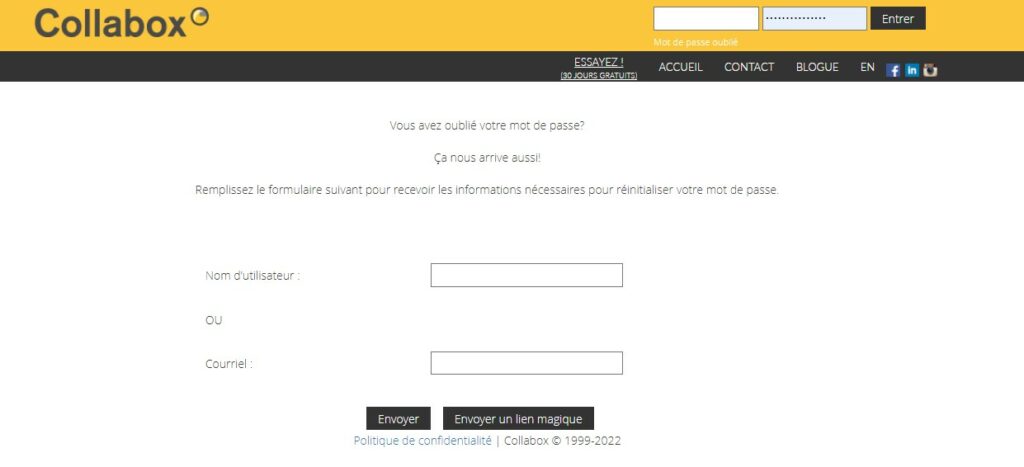
- You will arrive on the password recovery page
- You can enter either your username or your email. This will allow us to email you to change your password.
- Then click on Send
- Open message from service@collabox.com in your inbox (make sure we are not in your spam emails) and click on the link.
- You will be redirected to a new page with a form to change your password.
- Enter your new password and click on To send .
- A message will appear if your password has been changed.