How to create a sequential task template?
Collabox has integrated a workflow system to help you with sequential tasks. This way, you can maximize and prioritize the right tasks. (It can also free up a few minutes to distract yourself with funny videos).
Parent and child tasks
Our team of programmers worked hard to develop our family workflow. Let me explain. In Collabox, the workflow works using parent and child tasks.
All parent tasks must be completed before you can initiate the associated child task.
This way, the people responsible for the children’s tasks can be notified at the right time.

How to create a sequential task template
First of all, it is necessary to configure a template of sequential tasks. To do this, simply follow these steps:
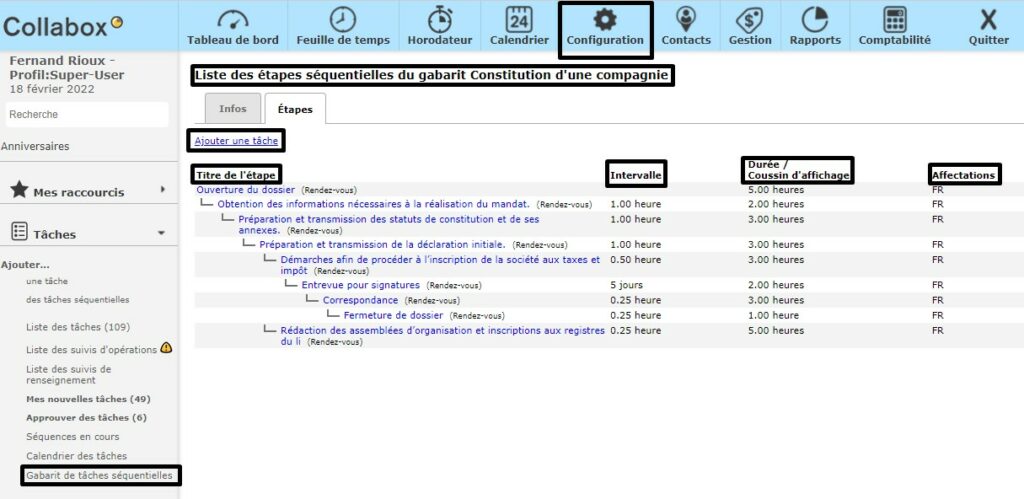
First click on the “Configuration” icon in the top bar.
Then select “Sequential task template” in the left bar under the “Tasks” section.
This page shows you all the templates you have created. In this page, you can also modify an existing template by clicking on its name or create a new one. To do this, click on “Add a sequential task template”.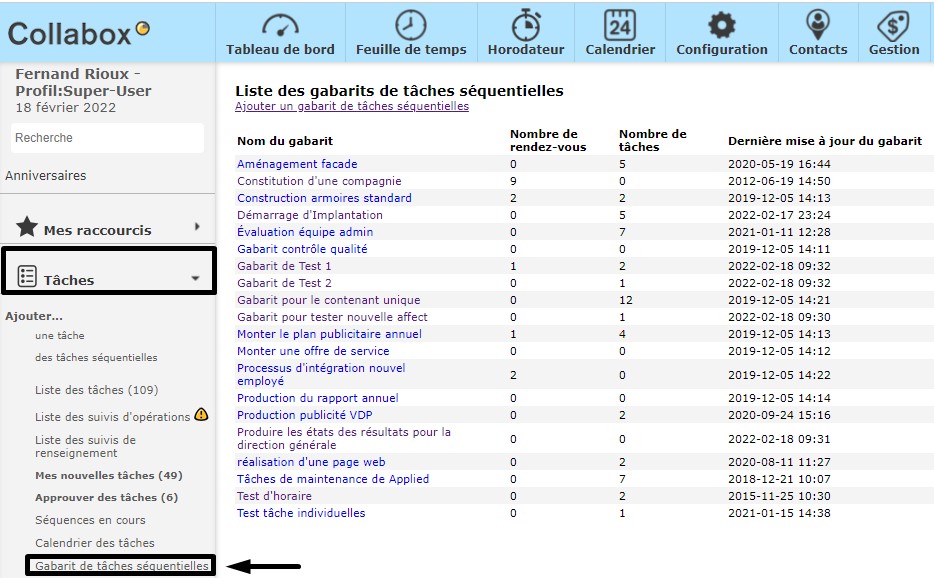
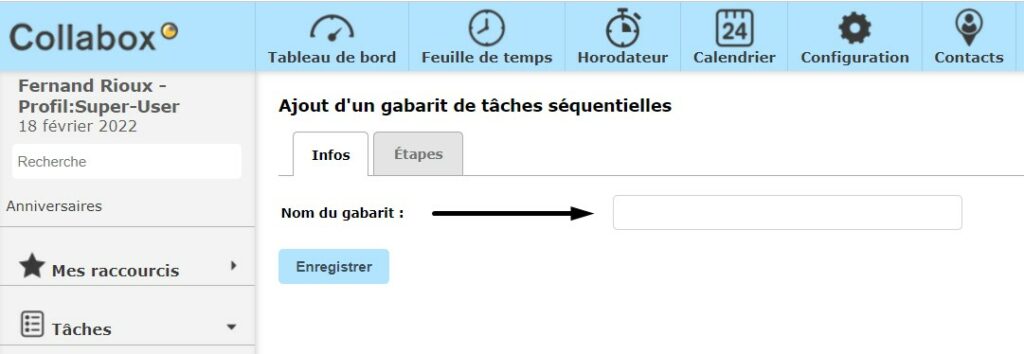
Give your template a name, then save.
Once this is set, go to the “Steps” tab to add the tasks by clicking on the “Add a task” link.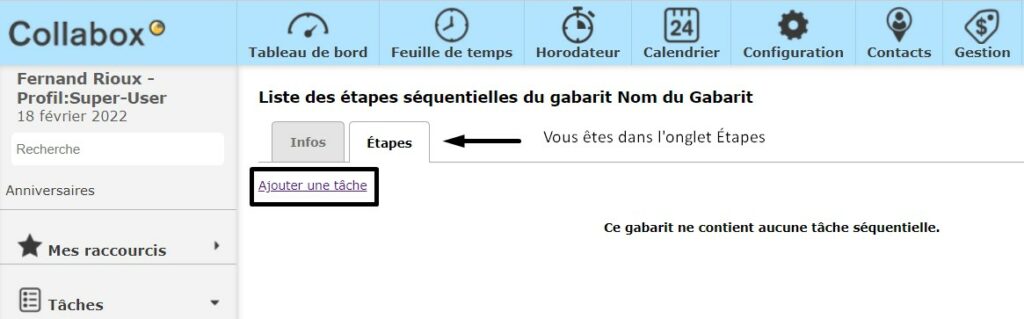
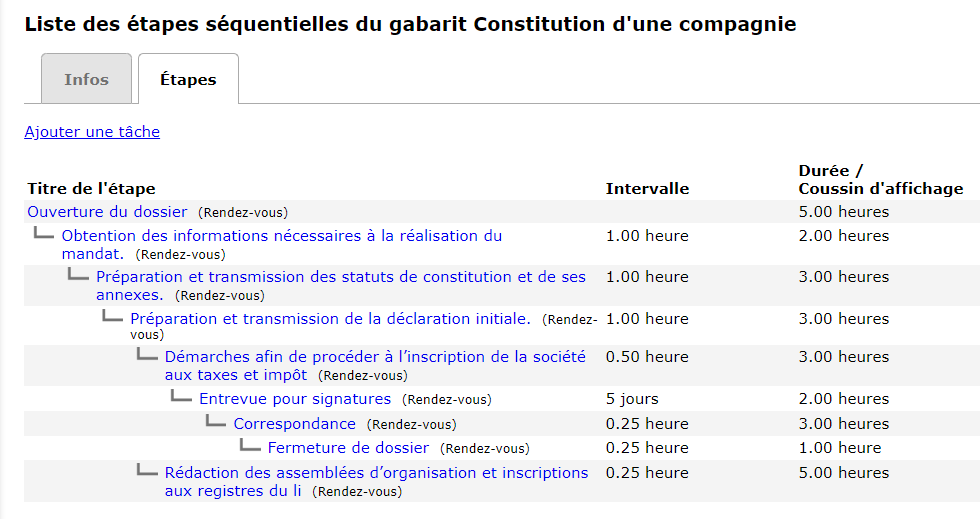
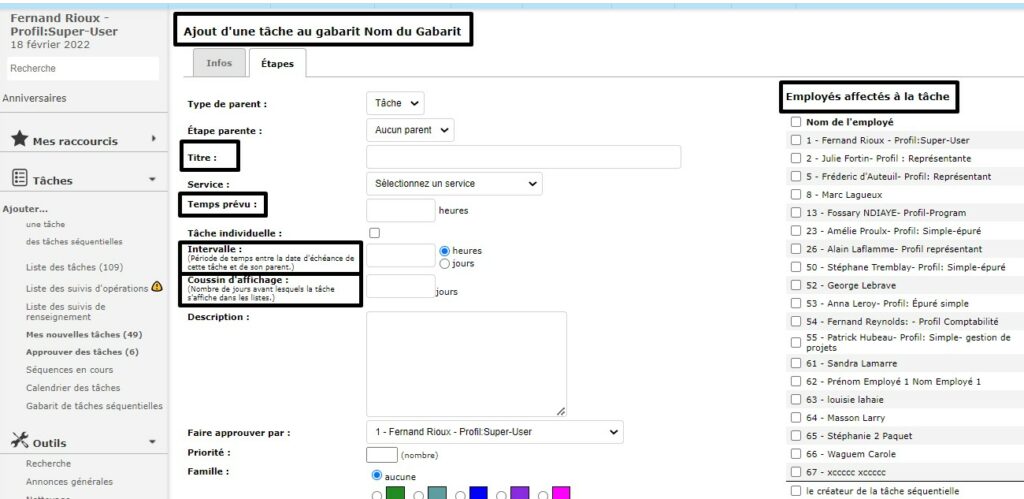
Once in the “Steps” tab, you will see the template tasks to complete:
- Title
- Expected time
- Employees assigned to the task
- Interval
- Display cushion
Create the parent task
Once you have mastered the creation of the sequential task template, the next step is to create the “parent task” and add “child tasks” or “appointments ” to this template. Just a few clicks and your workflow will be up and running.
Important: nointerval or display cushion should be set for the parent task.
Interval: This is the time that must pass between the end of the parent task and the beginning of the child task.
Display buffer : This is the period of time before the task appears in the to-do list.
This is what a parent task creation form should look like: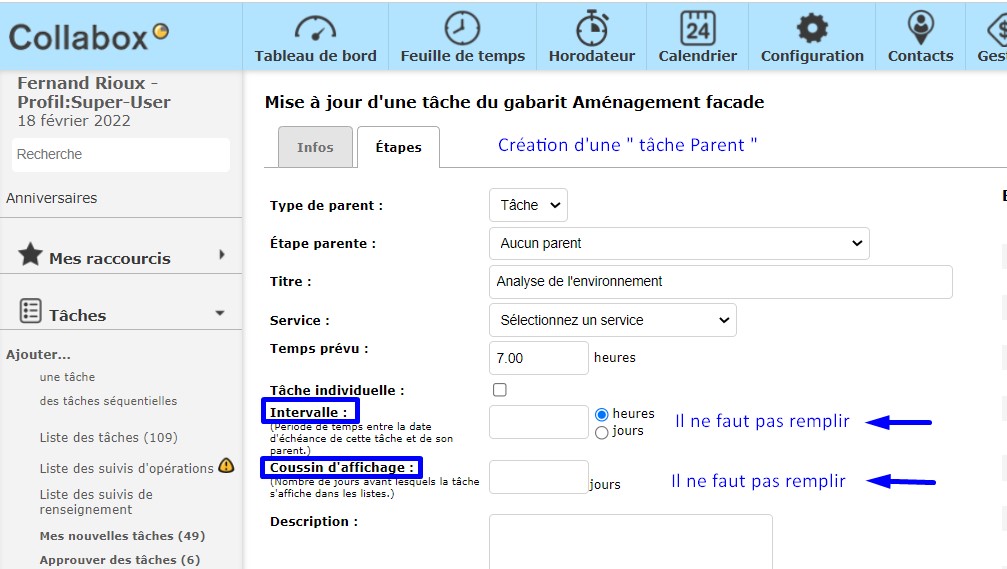
Here is some additional information about the form headings:

Create a child task
To create “child tasks” simply click on “Add a task” and then assign a“Parent step”, as well as the “Expected time”, an “Interval ” and a “Display cushion“.
Example
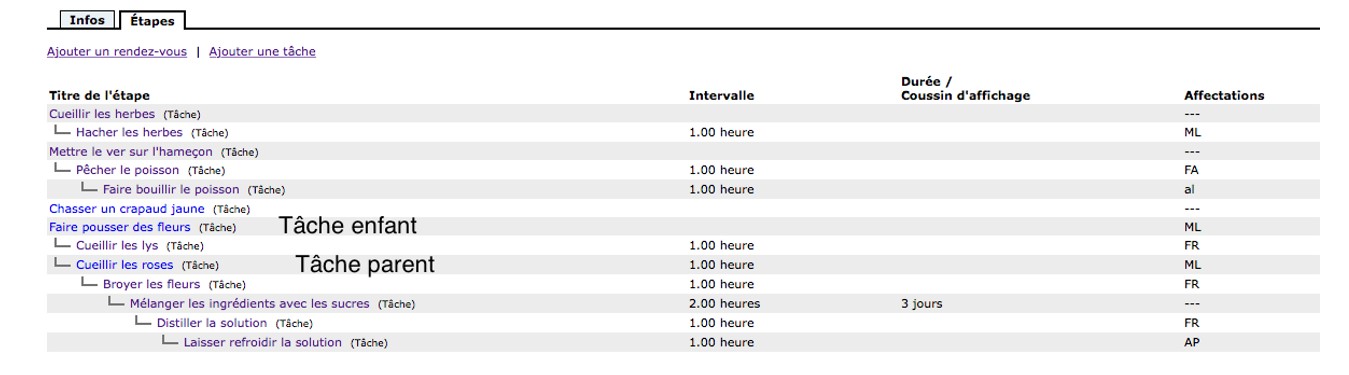
To facilitate your understanding of the relationship between the parent and child tasks, we have chosen the example below with the steps to follow to make a Merlin the Enchanter client potion.
Child tasks are linked to their parent by a small hook.
Both kinds of tasks can be started simultaneously, but the parent tasks must always be completed before finalizing the child tasks.
So if more than one employee is taking care of child tasks and one of them hasn’t finished, it can slow down all the work to be done. Indeed, in this situation, it will be impossible to finish the child task as long as the parent tasks are not complete.
In the example below, the child task is “Put the worm on the hook” and the parent task is “Catch the fish”. Thus, you must complete the child task before you can perform the parent task.