At the end of your year, you will have to produce your trial balance report for your accountant. This report groups all the general ledger entries.
Trial Balance Report
In the main menu at the top, first click on “Report”.

Then, in the left-hand menu, scroll down the page until you find the “Trial Balance” function.

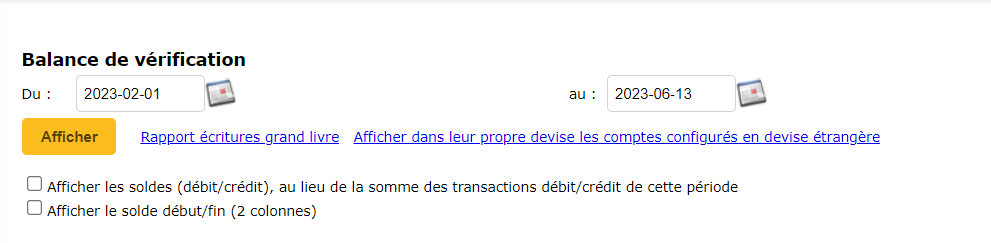
Among the options available to you, indicate the correct time interval, then click on “Display”. If necessary, check the boxes to customize the display of the balances. By default, all trial balance amounts are in Canadian dollars. If you have accounts in foreign currencies and wish to see the amounts shown on the account, click on the “Show accounts set up in foreign currency in their own currency” link.
The trial balance report is now created. To ensure that your organization has its accounting entries in order, the balance in the “Debit” column should be the same as that in the “Credit” column. If this is not the case, as in the following example, you will need to verify that all your invoices and disbursements are balanced. The blog post“Verification” explains how to proceed.


Watch several videos on our Youtube channel and visit our Tips and Tricks section in the Documentary Blog to continue using the Collabox!
If you have any questions, please contact us and we will be happy to answer you.
info@collabox.com (418) 907-9274