You can display tasks and appointments simultaneously in your calendar
We know that it is not always easy to plan your work, even if you write down your deadlines in the production schedule . You can now better plan the schedule of your employees by taking into account both scheduled appointments and tasks to be performed. All projects are delivered on time.
To display tasks and appointments at the same time in your calendar, you just need to check the boxes Appointment and Tasks located at the top left of the calendar. You can uncheck one of the two at any time to view only what you want.

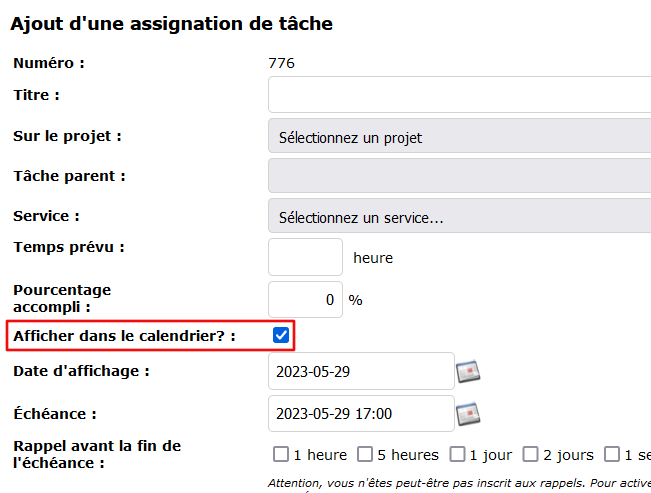
Conversely, if you have tasks that don’t require a calendar display, you can simply remove them. When creating a task, check or uncheck the following box.
To differentiate tasks from appointments, observe the outlines of the rectangles. In the horizontal calendar, the rounded edges correspond to an appointment; sharp edges, to a task. The reverse is true for the vertical calendar. You can also put the appointments and tasks in the color you want.

When you create a task, specify a due date and a completion date. It is this completion date that will be displayed in the calendar. This option was implemented on December 20, 2017.
Watch out for data conversion!
Tasks created before December 20, 2017 did not have a completion date. For this reason, they will appear in the calendar on the due date. This is the default conversion determined by the Collabox. You can still go and change the deadline manually. Just move la task with your mouse directly in the calendar (“drag and drop”). To do this, hold down the left click of your mouse on the task you want to move. Move then your mouse to the right date. Drop the task into the calendar. The new date est recorded!
Note 1 : It’s exactly the same principle for the appointments : they can be moved by “drag and drop” too.
You can see below that the task has moved for all the people assigned to it. This happens automatically when you move a task.
You can also modify the completion and due dates of a task by updating it with the page Updating a task assignment . The fields to be modified are in the red boxes. To differentiate the completion date from the due date, see the caption below the following image.
July 4, 2018 update
The deadlines of the tasks are displayed in the calendar independently of the time scheduled for the completion of the task. They are recognizable by the small clock icon located at the top right of the box. The moment of accomplishment of the task, it does not have any.
In addition, the deadlines have a small green check mark in each box to indicate that you are not late .
Watch several videos on our Youtube channel and visit our Tips and Tricks section in the Documentary Blog to continue using the Collabox!
If you have any questions, please contact us and we will be happy to answer you.
info@collabox.com (418) 907-9274 ext. 120